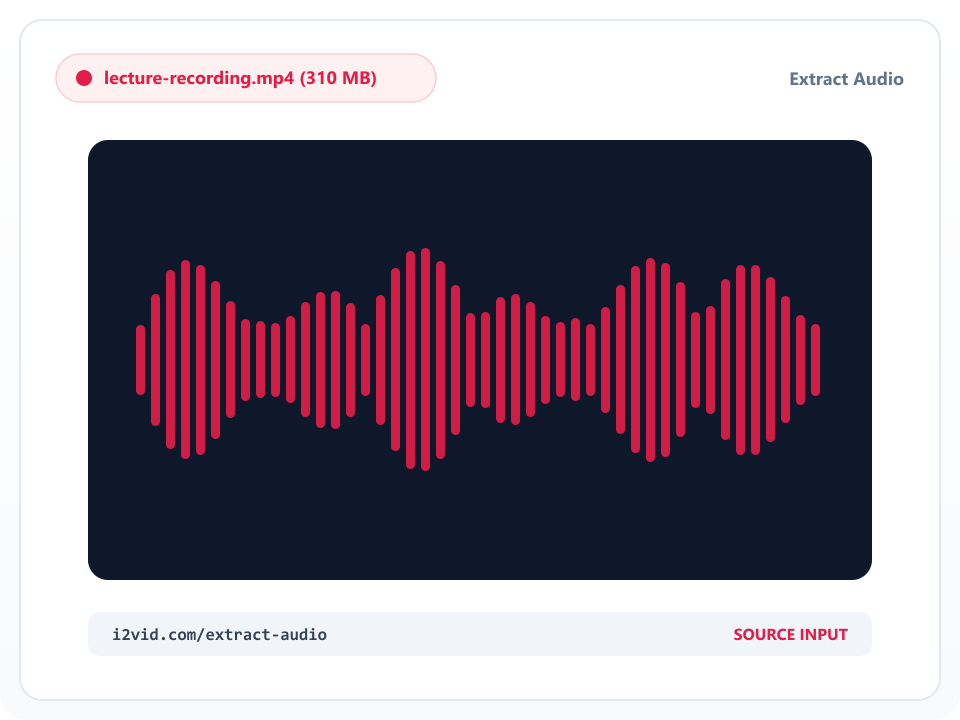


Drop your video file to inspect its audio waveform
Open Extract Audio and select your video recording. The audio waveform renders along the bottom timeline.
Drag the Start and End handles if you want to extract only a specific song, quote, or chapter rather than the entire recording.
Pick your audio format, normalization, and fade envelopes
Choose WAV (PCM 16-bit) for uncompressed editing in DAWs, M4A (AAC) for compact universal playback on phones and Apple devices, or OGG (Opus) for high-efficiency voice.
Enable Normalize Peak Level to bring quiet speakers up to standard listening volume, and add optional Fade In / Fade Out seconds for smooth edges.
Pick WAV when importing into Audacity, Premiere, or i2Sound; pick M4A when emailing or listening on mobile at 1/10th the file size.
A gentle half-second fade eliminates abrupt clicks when cutting out a chorus or intro loop.
Extract and download your soundtrack
Click Export Audio to decode and write your audio file locally.
Listen to the extracted track right in the download player before saving to disk.
Ready to use Extract Audio?
Open Extract Audio in your browser—100% private on your device with zero uploads and zero watermarks. Related video tools: Mute Video, Add Audio to Video, Video Volume Booster.
Extract Audio FAQs
Practical answers for getting clean, fast, watermark-free video exports right in your browser.
What happens if a video has no audio stream?
The tool detects silent video containers immediately and alerts you clearly before running an export.
Does Normalize distort loud sections?
No. Peak normalization scales gain cleanly to safe headroom (−1 dBFS) without clipping peaks.
Is my video uploaded anywhere during extraction?
Never. Audio extraction runs locally inside your browser.