
Drop your quiet MP4, MOV, MKV, or WebM recording
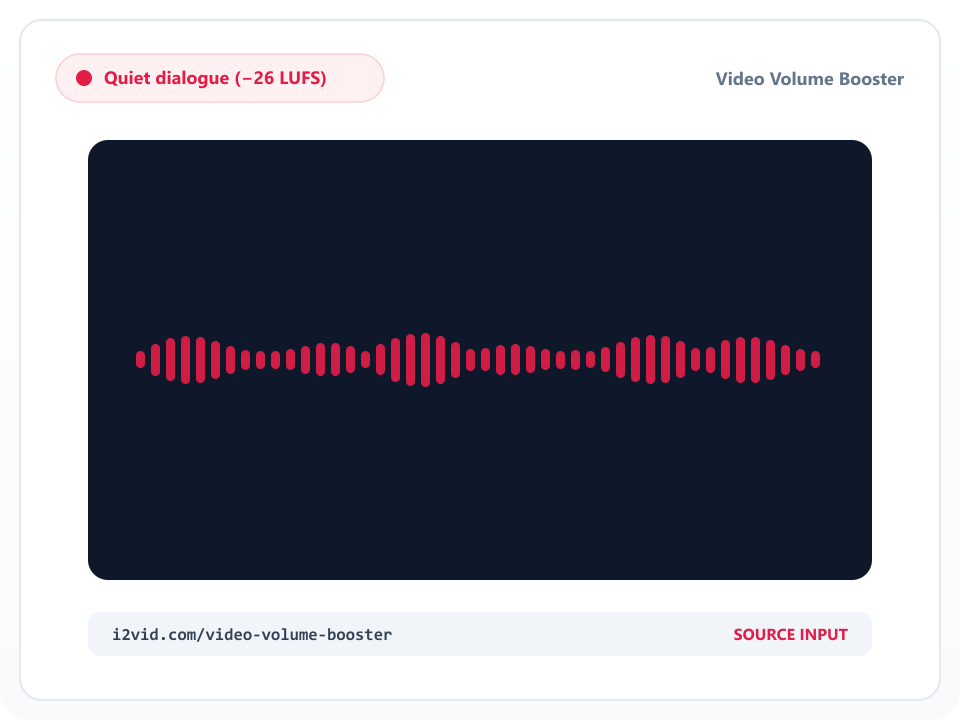
Open Video Volume Booster and load your clip. You will see the low-amplitude waveform along the timeline.
Press Play to listen as you adjust gain.
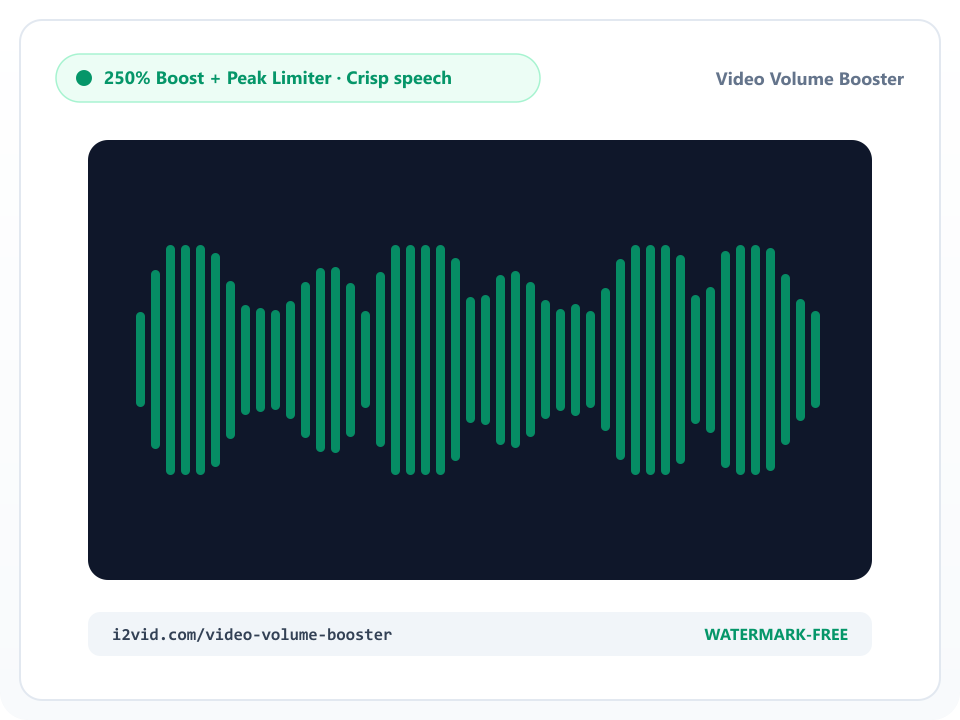
Choose your volume boost percentage and keep peak limiting enabled
Select 150%, 200%, 300%, or up to 400% gain (or use Auto-Normalize) to bring soft voices up to comfortable listening volume.
Keep Anti-Clipping Peak Protection checked so sudden laughs, desk taps, or applause compress gently instead of crackling.
Start around 200%–250% with Peak Protection enabled so speech sounds natural without raising room hum excessively.
Because video frames are not re-encoded on compatible MP4s, boosting a long lecture finishes remarkably fast.
Save your amplified video with zero picture loss
Click Export Video—compatible video tracks copy directly without re-encoding pixels while the boosted audio track is written.
Verify the louder playback on the download screen and save your file.
Ready to use Video Volume Booster?
Open Video Volume Booster in your browser—100% private on your device with zero uploads and zero watermarks. Related video tools: Extract Audio, Mute Video, Add Audio to Video.
Video Volume Booster FAQs
Practical answers for getting clean, fast, watermark-free video exports right in your browser.
Will boosting to 300% cause harsh speaker crackle?
Enabling Anti-Clipping Peak Protection tames loud transients cleanly below 0 dBFS so voices get louder without distortion.
Does boosting audio change video sharpness?
No—your video picture stays 100% untouched.
Are recordings kept private?
Yes, all audio processing happens locally inside your browser.