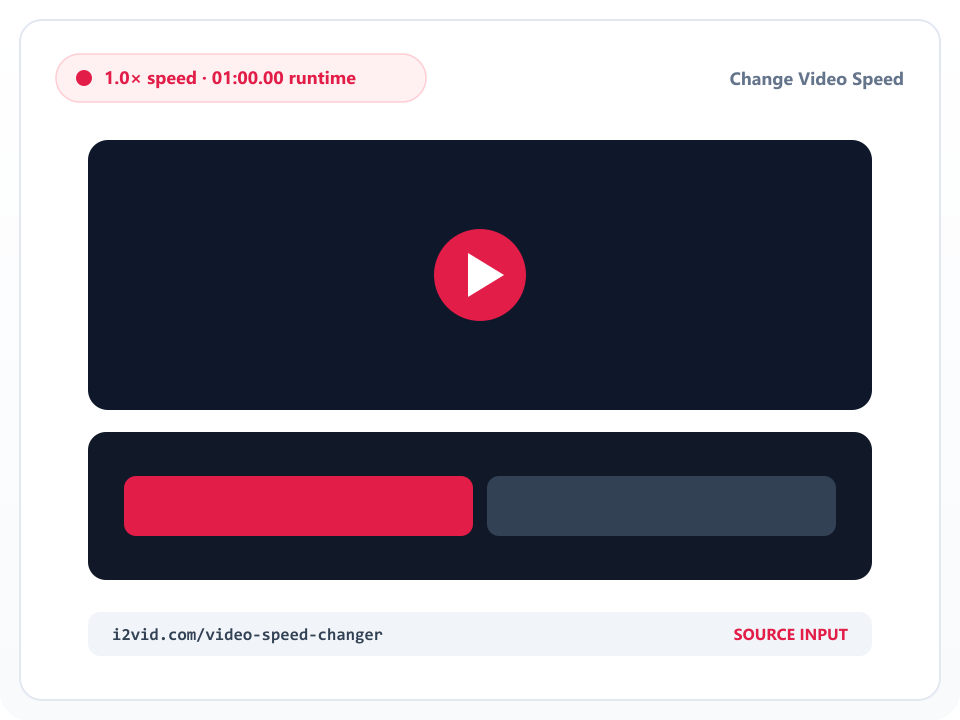


Load your video onto the speed changer stage
Open Change Video Speed and drop your MP4, MOV, MKV, or WebM clip.
Drag Start and End on the filmstrip if you only want to export a specific portion of the recording.
Choose a slow-motion or fast-forward preset (or custom slider)
Click 0.25×, 0.5×, 0.75× for slow motion, or 1.25×, 1.5×, 2×, 3×, 4× for fast-forward—or dial any custom multiplier.
Press Play to preview the exact speed live, and uncheck Keep audio track when making silent 3×–4× timelapses.
Slowing a 60 FPS phone or gameplay clip to 0.5× still delivers a smooth 30 real frames every second!
Speeding spoken tutorials to 1.25× tightens pacing while keeping speech completely natural and intelligible.
Render and download your speed-adjusted video
Click Export Video to retime video frames and audio cleanly in your browser.
Download your finished MP4 or WebM with zero watermarks.
Ready to use Change Video Speed?
Open Change Video Speed in your browser—100% private on your device with zero uploads and zero watermarks. Related video tools: Change Frame Rate, Reverse Video, Loop Video.
Change Video Speed FAQs
Practical answers for getting clean, fast, watermark-free video exports right in your browser.
Does changing speed alter the exported video file duration?
Yes—a 20-second clip exported at 2× becomes a true 10-second file, and at 0.5× becomes a 40-second file.
Should I keep or mute audio at 4× timelapse speed?
For 1.25×–2× speech stays useful; for 3×–4× timelapses, muting audio (or adding fresh music afterward) usually sounds cleanest.
Is there any watermark on exported slow-motion or timelapse clips?
Never.