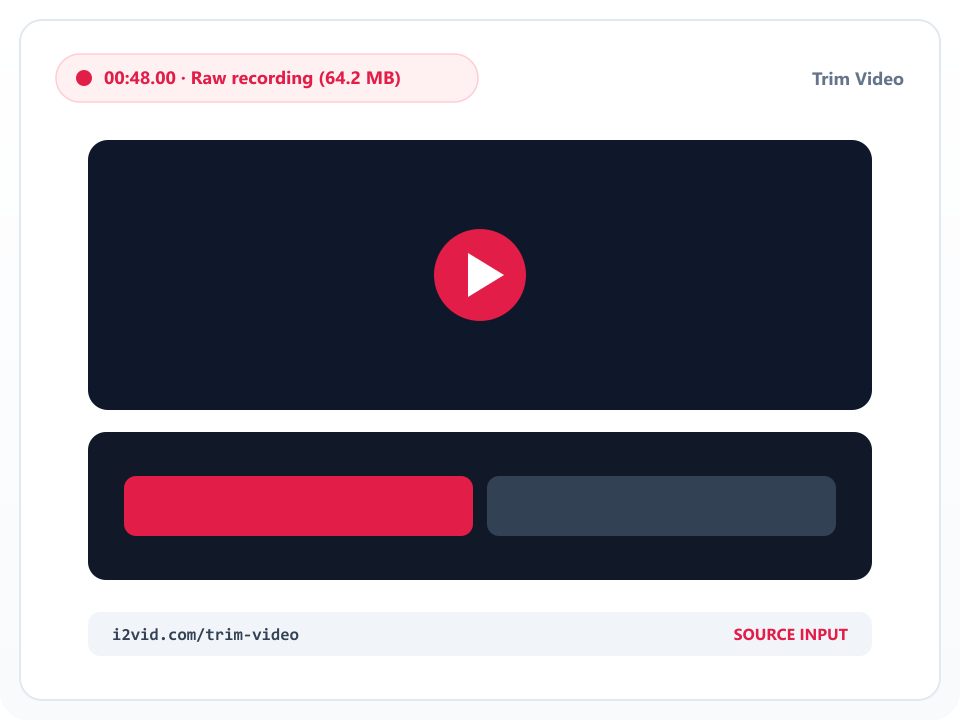

Drop your video onto the trimmer workspace
Open Trim Video and drop an MP4, MOV, MKV, or WebM clip from your computer or phone. Because everything stays on your device, even large recordings open immediately with zero upload bar.
You will see your video above a docked frame filmstrip and synchronized audio waveform so spoken pauses and scene changes are easy to spot.
Drag Start and End handles—or switch to Cut Out Middle
Drag the left Start handle and right End handle on the filmstrip, or type exact timestamps to the hundredth of a second. Use Keep Selected to retain the highlighted section, or switch to Cut Out & Join to remove a middle mistake and stitch both ends seamlessly.
Leave Instant Copy selected for ultra-fast, zero-recompression cuts on compatible clips, or choose Frame-Exact when you need sub-frame precision on a specific word.
Place your Start handle just before the first waveform spike so spoken intros feel crisp without clipping the first syllable.
Instant Copy finishes in under a second with zero pixel re-encoding; choose Frame-Exact when cutting mid-sentence between natural keyframe boundaries.
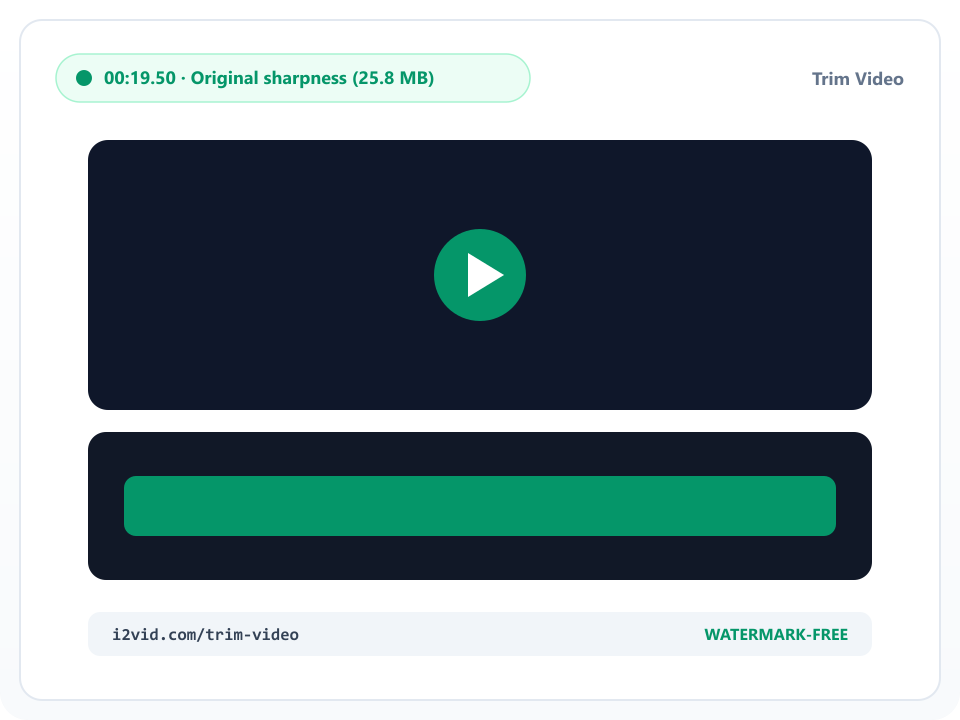
Preview your cut and save your trimmed video
Click Play or enable Loop Preview to verify the entry and exit points before saving.
Click Export Video to generate your trimmed MP4 or WebM file and download it immediately—or pass it straight to Compress Video or Crop Video in one click.
Ready to use Trim Video?
Open Trim Video in your browser—100% private on your device with zero uploads and zero watermarks. Related video tools: Split Video, Merge Videos, Compress Video.
Trim Video FAQs
Practical answers for getting clean, fast, watermark-free video exports right in your browser.
Does trimming reduce my video resolution or sharpness?
In Instant Copy mode, video and audio streams copy directly without re-encoding, preserving 100% of your original resolution and clarity.
Can I cut a mistake out of the middle of a video?
Yes. Switch Trim Action to Cut Out & Join to delete the selected middle range and join the before and after segments into one clip.
Is there a file upload wait or watermark?
Neither. Files stay locally in your browser and every export is completely watermark-free.