
Tools40

Screen & webcam

How to Record Your Screen Online Free With Audio & Post-Capture Cropping

Installing heavy desktop screen recorders or granting shady browser extensions access to every tab is unnecessary for quick walkthroughs and bug reports. i2Vid Screen Recorder captures your screen, system audio, and mic directly in your browser—and immediately gives you interactive crop and trim handles before exporting MP4.

Record your desktop, app window, or browser tab with system audio and microphone voiceover—then crop to any window region and export MP4 with zero installs or watermarks.

Follow the guide
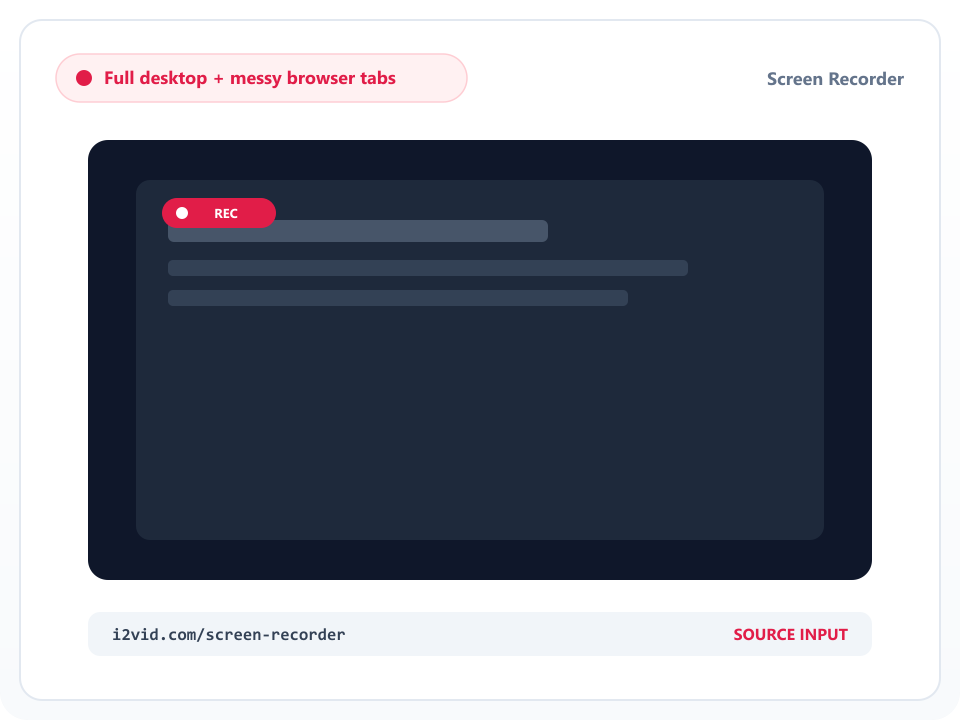
Before Full desktop + messy browser tabs
Screen Recorder source input — Full desktop + messy browser tabs
Full monitor capture showing bookmarks bar, taskbar notifications, and pre-roll setup seconds.
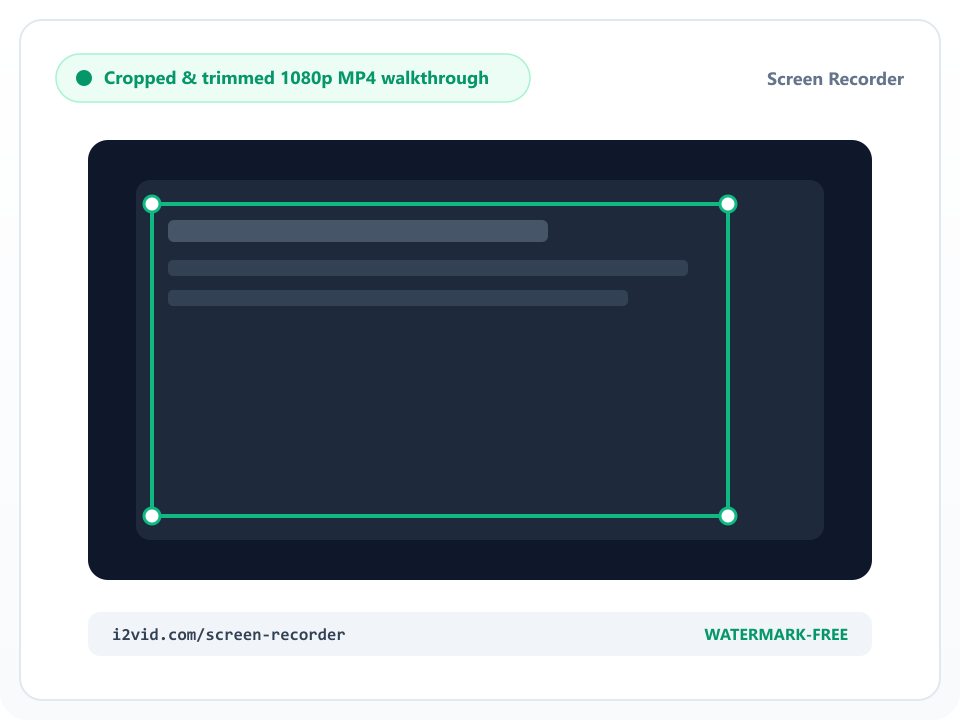
After Cropped & trimmed 1080p MP4 walkthrough
Screen Recorder finished result — Cropped & trimmed 1080p MP4 walkthrough
Cleanly cropped window walkthrough with synced voiceover and trimmed start/end exported to MP4.
QUICK VIDEO TUTORIAL How to Record Your Screen Online Free With Audio & Post-Capture Cropping Installing heavy desktop screen recorders or granting shady browser extensions access to every tab is unnecessary for quick walkthroughs and bug reports. i2Vid Screen Recorder captures your screen, system audio, and mic directly in your browser—and immediately gives you interactive crop and trim handles before exporting MP4. Watch the video

How to Record Your Screen Online Free With Audio & Post-Capture Cropping

01

Choose audio options and pick your screen, window, or tab

Open Screen Recorder and toggle Capture system / tab audio, Record microphone voiceover, and optional 3-second countdown.

Click Start Screen Recording and select Entire Screen, Window, or Browser Tab in your browser prompt. Use Pause and Resume anytime to skip loading waits cleanly.

02

Stop recording to crop out toolbars and trim your ends

Click Stop & Edit Clip. Your recording opens immediately on the editing stage with an interactive 8-handle crop box.

Drag the crop handles (or choose 16:9, 9:16, or 1:1) to remove browser tabs and taskbars, and pull the filmstrip Start/End handles to cut pre-roll setup.

Share a Browser Tab for crispest system audio

Chrome and Edge capture crystal-clear tab audio on both Windows and macOS when you select a specific Browser Tab and check Also share tab audio.

Crop after recording instead of resizing windows

Record your full screen comfortably, then drag the post-capture crop handles right around the target app before exporting.

03

Download your finished MP4 or WebM screen recording

Choose MP4 (H.264) for universal sharing in Slack, Jira, GitHub, or YouTube, or WebM for lightweight web archiving.

Click Export Video to download your recording locally—nothing is ever uploaded to any cloud server.

Ready to use Screen Recorder?

Open Screen Recorder in your browser—100% private on your device with zero uploads and zero watermarks. Related video tools: Picture in Picture Video, Blur Video, Compress Video.

Open Screen Recorder
Common questions

Screen Recorder FAQs

Practical answers for getting clean, fast, watermark-free video exports right in your browser.

Is there a 5-minute recording limit or corner watermark?

No. There are zero artificial time limits, zero extensions to install, and zero watermarks.

Can I crop my screen recording right inside the tool?

Yes. As soon as you click Stop & Edit Clip, interactive 8-handle crop controls appear directly over your captured video.

Where are my screen recordings stored?

Strictly in your browser memory until you download them to your own device—never uploaded anywhere.


Image detail

Language38

EnglishالعربيةFrançaisItalianoDeutschEspañolPortuguêsNederlandsРусскийTürkçe日本語中文हिन्दीBahasa IndonesiaBahasa Melayu한국어Tiếng ViệtไทยPolskiSvenskaУкраїнськаNorskবাংলাΕλληνικάفارسیاردوČeštinaDanskMagyarRomânăSuomiБългарскиFilipinoქართულიSlovenčinaAzərbaycancaעבריתSlovenščina