
Enable microphone, mirror flip, and optional 3-second countdown
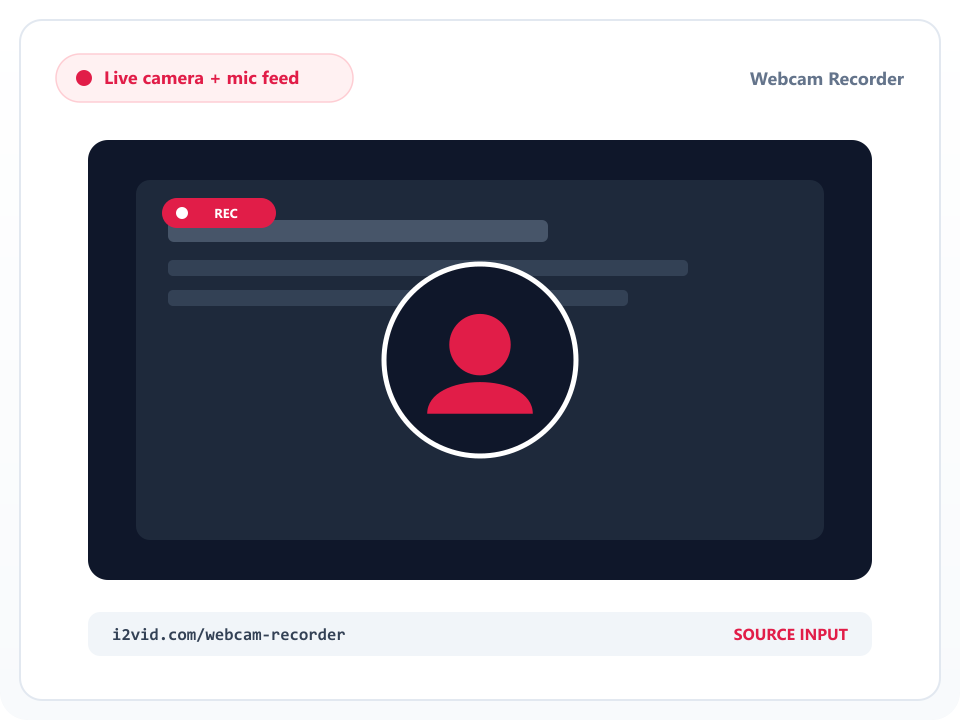
Open Webcam Recorder and choose whether to mirror your camera horizontally and enable a 3-second countdown so you are settled before frame 1.
Click Start Recording and allow camera and microphone access in your browser prompt.
Deliver your take with Pause and Resume control
Watch the live monitor and REC timer as you speak; click Pause anytime to gather your notes and Resume seamlessly in the same clip.
Click Stop & Edit Clip when finished to load your take straight onto the trimming stage.
Even modest front lighting in front of your laptop screen dramatically reduces webcam sensor grain.
Click Adjust Video on the download screen if you want to add subtle brightness, warmth, or contrast to your webcam clip.
Trim any start/end reach-for-mouse frames and save as MP4
Pull the Start and End handles slightly inward to remove the moment you looked at the Stop button.
Select MP4 (H.264) or WebM and click Export Video to save your camera recording locally.
Ready to use Webcam Recorder?
Open Webcam Recorder in your browser—100% private on your device with zero uploads and zero watermarks. Related video tools: Screen Recorder, Picture in Picture Video, Adjust Video.
Webcam Recorder FAQs
Practical answers for getting clean, fast, watermark-free video exports right in your browser.
Is my webcam feed ever streamed to a server?
Never. Your camera and microphone streams are recorded directly inside your local browser tab.
Why is MP4 recommended over raw WebM for submissions?
School portals (Canvas, Blackboard), job boards, and Apple devices accept H.264 MP4 universally.
Are there recording length caps or watermarks?
None at all.