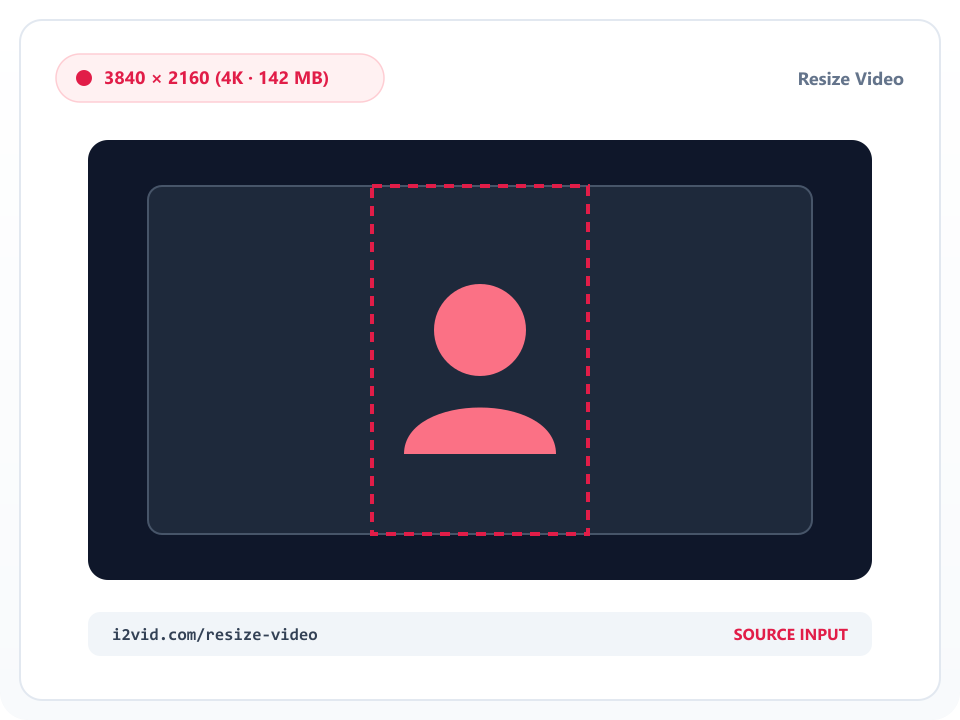


Open your video to inspect its current pixel dimensions
Open Resize Video and drop your MP4, MOV, MKV, or WebM clip. The live badge displays your current resolution and target output dimensions.
Trim any unwanted start or end seconds on the filmstrip if needed.
Choose a resolution preset or enter custom Width × Height
Click 1080p, 720p, 480p, 1080×1920 (9:16), or 1080×1080 (1:1)—or type exact custom pixel dimensions with optional aspect lock.
When changing aspect ratio, pick Fit (Letterbox), Fill (Center Crop), or Blur Backdrop so your video never looks squashed or stretched.
1080p looks virtually identical on laptop and phone screens while cutting file size by 65–80%.
Enlarging a 360p clip to 4K increases file size without inventing new camera detail—match or downscale from your source resolution for best clarity.
Render and download your resized video
Click Export Video to scale and encode your clip locally.
Verify the new Width × Height and file size on the download screen and save your file.
Ready to use Resize Video?
Open Resize Video in your browser—100% private on your device with zero uploads and zero watermarks. Related video tools: Compress Video, Crop Video, Video Converter.
Resize Video FAQs
Practical answers for getting clean, fast, watermark-free video exports right in your browser.
How do I resize a video without stretching people or text?
Keep Aspect Lock enabled when scaling proportionally, or use Fit / Blur Backdrop when targeting a different aspect ratio.
What resolution is best for website background videos?
1280×720 (720p) or 1920×1080 (1080p) muted WebM/MP4 delivers sharp visuals with fast initial loading.
Are my files uploaded anywhere?
No, resizing runs completely inside your browser.