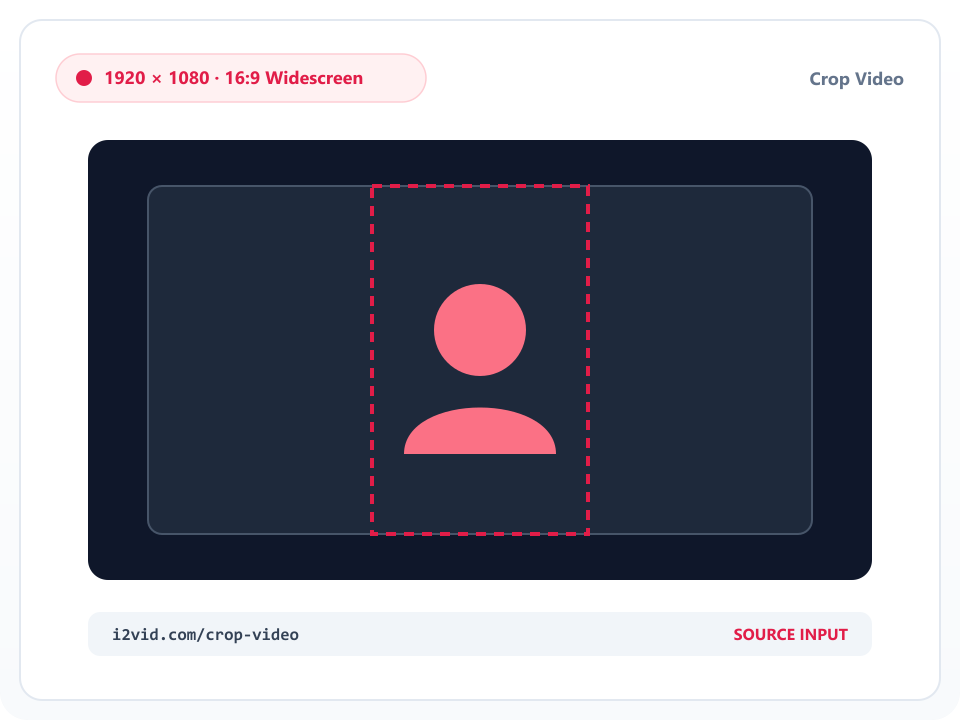

Load your video onto the interactive cropping stage
Open Crop Video and select your MP4, MOV, MKV, or WebM clip. An interactive 8-handle crop box appears directly over the live video preview.
Scrub the timeline to check subject movement across the clip before locking in your crop rectangle.
Drag crop handles freely or lock a social aspect preset
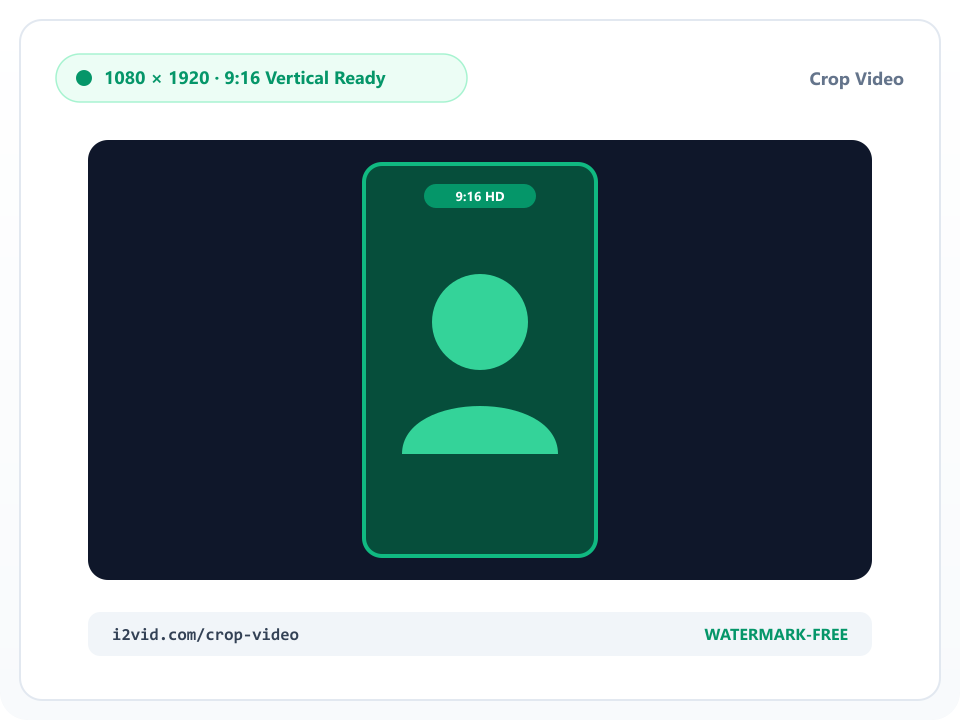
Click Free to isolate any custom window region, or lock 9:16 (Reels/Shorts/TikTok), 1:1 (Square), 4:5 (Portrait), or 16:9. Drag inside the box to pan, or type exact X, Y, Width, and Height pixel values.
Switch Framing Mode to Blur Fill when you want to keep the entire 16:9 frame visible inside a 9:16 vertical canvas over a soft, glowing blurred backdrop.
If two speakers sit at opposite sides of a 16:9 frame, Blur Fill keeps both visible inside a 9:16 vertical canvas without cutting anyone out.
Type exact Width and Height numbers in the Crop Region fields when matching a strict website hero or app-store preview size.
Export your reframed video with zero watermarks
Use Center H or Center V to snap your crop box to exact symmetry if needed.
Click Export Video to render and download your newly framed MP4 or WebM file.
Ready to use Crop Video?
Open Crop Video in your browser—100% private on your device with zero uploads and zero watermarks. Related video tools: Resize Video, Screen Recorder, Online Video Editor.
Crop Video FAQs
Practical answers for getting clean, fast, watermark-free video exports right in your browser.
Why are output dimensions rounded to even pixel numbers?
H.264 and VP9 video codecs require even width and height values so files play cleanly on iOS, Android, and social platforms without green edge lines.
Can I trim the video duration at the same time I crop?
Yes. Adjust the Start and End handles on the filmstrip below the stage to trim and crop in a single export.
Does Crop Video add any watermark?
Never. Every cropped video downloads 100% watermark-free.