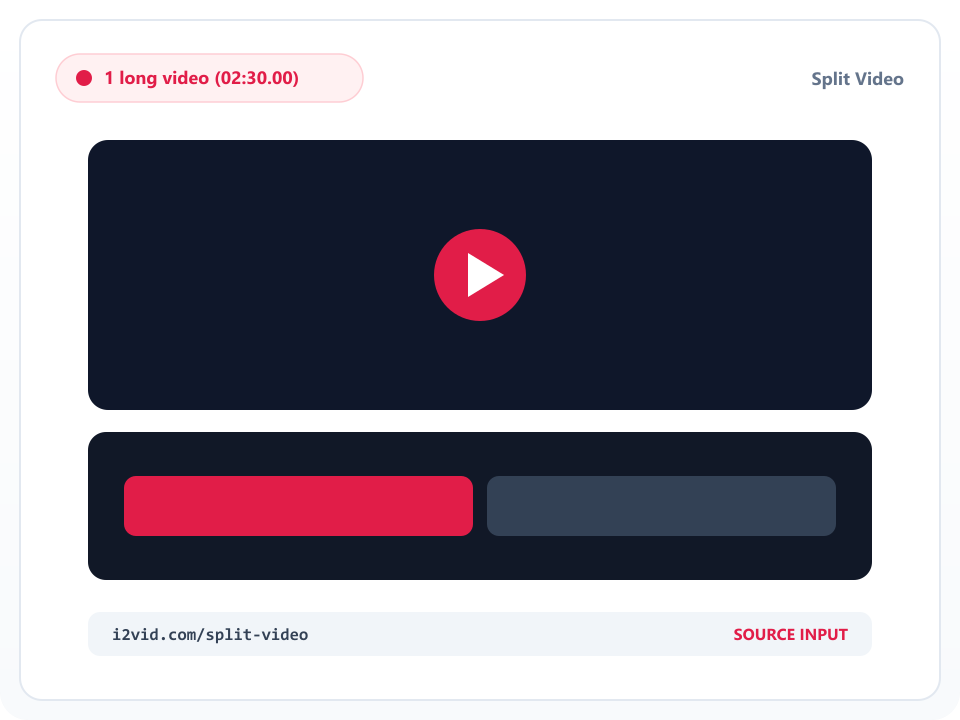

Drop your MP4, MOV, MKV, or WebM recording
Open Split Video and select the video you want to divide.
Scrub the filmstrip to preview chapter transitions or natural pauses.
Choose Custom Markers, Equal Parts, or Fixed Duration
Select Custom Markers to drop split points at exact playhead timestamps, Equal Parts to divide evenly into 2–10 clips, or Fixed Duration (such as every 15s, 30s, or 60s).
Inspect the live segment count badge to confirm how many parts will be created.
Use Fixed Duration → 30s to turn any longer clip into sequential, numbered parts ready to post in order.
Compatible MP4 and WebM files split rapidly without degrading visual sharpness.
Export and download all split segments
Click Export Video to slice every segment locally in your browser.
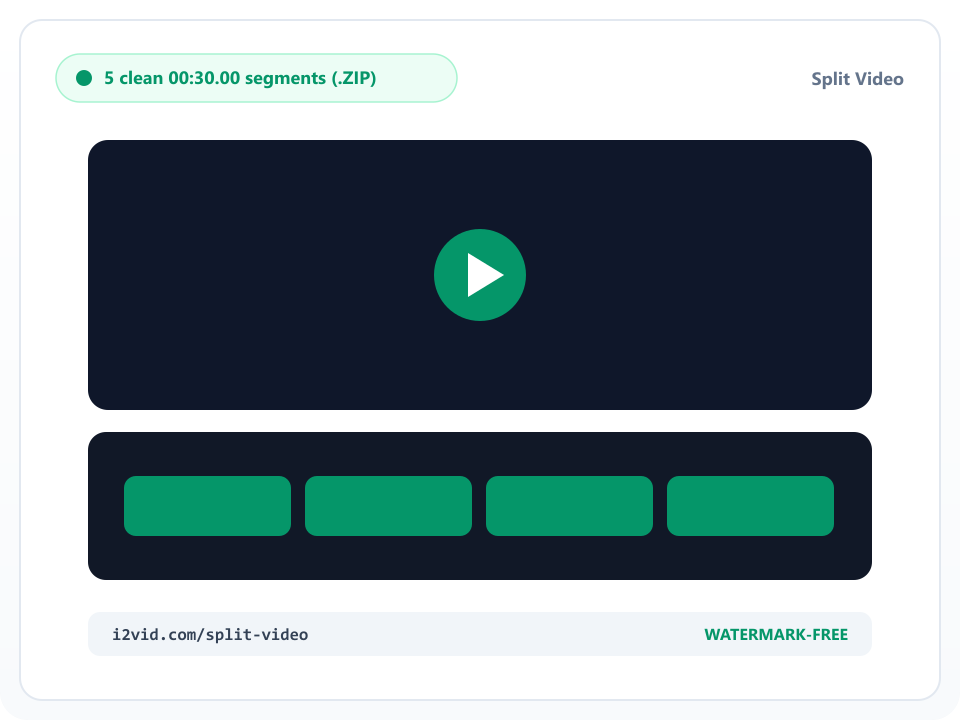
Multi-part splits bundle automatically into a convenient numbered ZIP archive so you can save every clip in one click.
Ready to use Split Video?
Open Split Video in your browser—100% private on your device with zero uploads and zero watermarks. Related video tools: Trim Video, Merge Videos, Compress Video.
Split Video FAQs
Practical answers for getting clean, fast, watermark-free video exports right in your browser.
How are multiple split clips downloaded?
When two or more segments are produced, they are packaged cleanly into a single numbered .zip file (`part-01`, `part-02`, etc.) so your browser does not block multiple popups.
Does splitting lower my video quality?
No. Compatible streams are sliced without unnecessary re-compression.
Is there a limit on video duration?
Only your own device memory—nothing is uploaded to external servers.