
Open your video and scrub to the sensitive frame
Open Blur Video and load your MP4, MOV, MKV, or WebM recording.
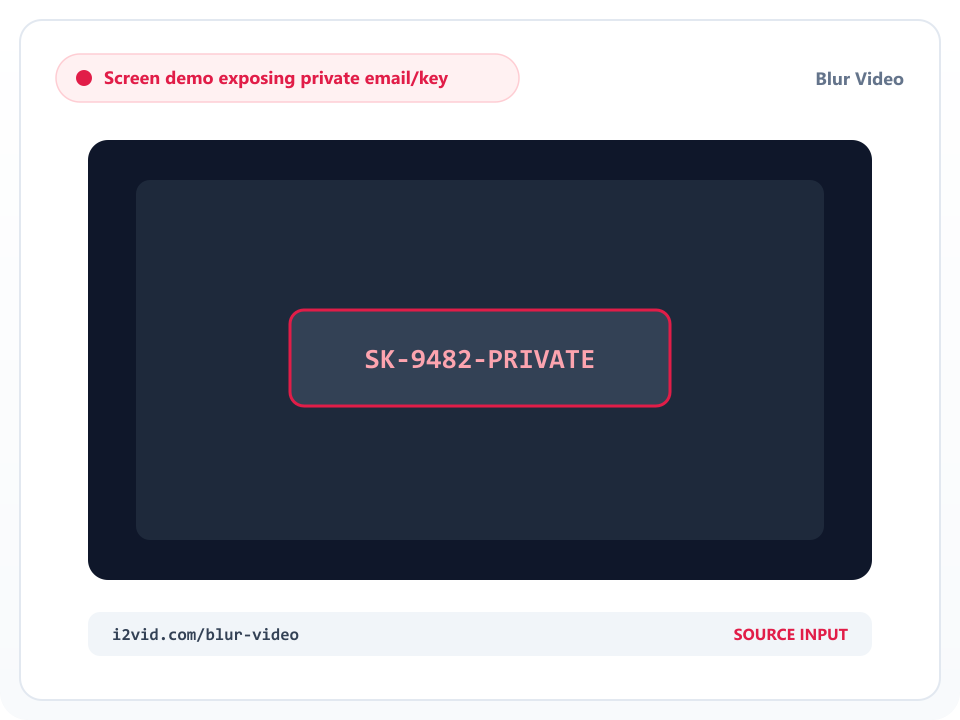
Drag the interactive blur box directly over the face, license plate, password field, or address bar you need to hide.
Select Gaussian Blur, Pixelate, or Blackout and adjust intensity
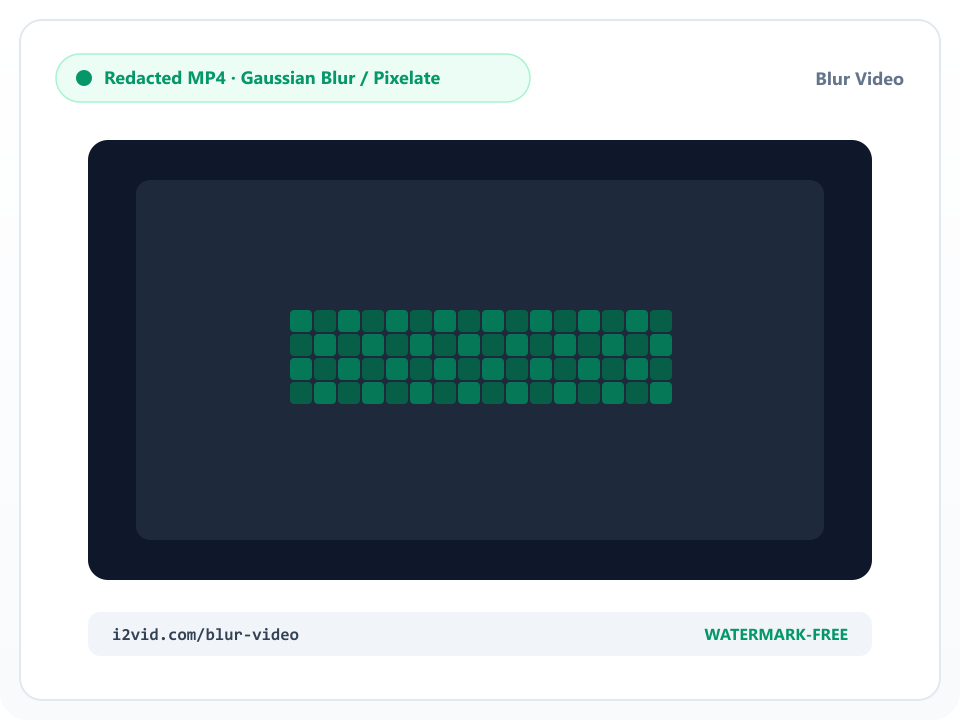
Choose Soft Blur for clean UI demos, Mosaic Pixelate for classic face/plate anonymization, or Solid Blackout for maximum redaction of small text and tokens.
Set Strength high enough that text cannot be guessed, and choose whether the redaction applies to the entire clip or only a specific time range.
Give faces or license plates a generous margin around their path of motion, or use Solid Blackout for crisp API keys and tokens.
Click Video Metadata Inspector on the download screen if you also want to strip embedded camera GPS coordinates from the file header.
Verify and download your redacted video
Scrub through the preview to ensure the subject never drifts outside your redaction box.
Click Export Video to bake the blur permanently into the output frames—so viewers can never remove or undo it.
Ready to use Blur Video?
Open Blur Video in your browser—100% private on your device with zero uploads and zero watermarks. Related video tools: Screen Recorder, Video Metadata Inspector, Mute Video.
Blur Video FAQs
Practical answers for getting clean, fast, watermark-free video exports right in your browser.
Can someone reverse or remove the blur from the exported MP4?
Solid Blackout discards underlying pixels completely, and heavy Gaussian/Mosaic redaction bakes directly into the flat video stream with no separate layer.
Are unredacted videos uploaded anywhere?
Never. Your sensitive source recording stays 100% inside your own browser tab.
Can I blur only 4 seconds in the middle of a tutorial?
Yes—enable timed redaction so the blur appears only during the exact seconds the sensitive tab is open.