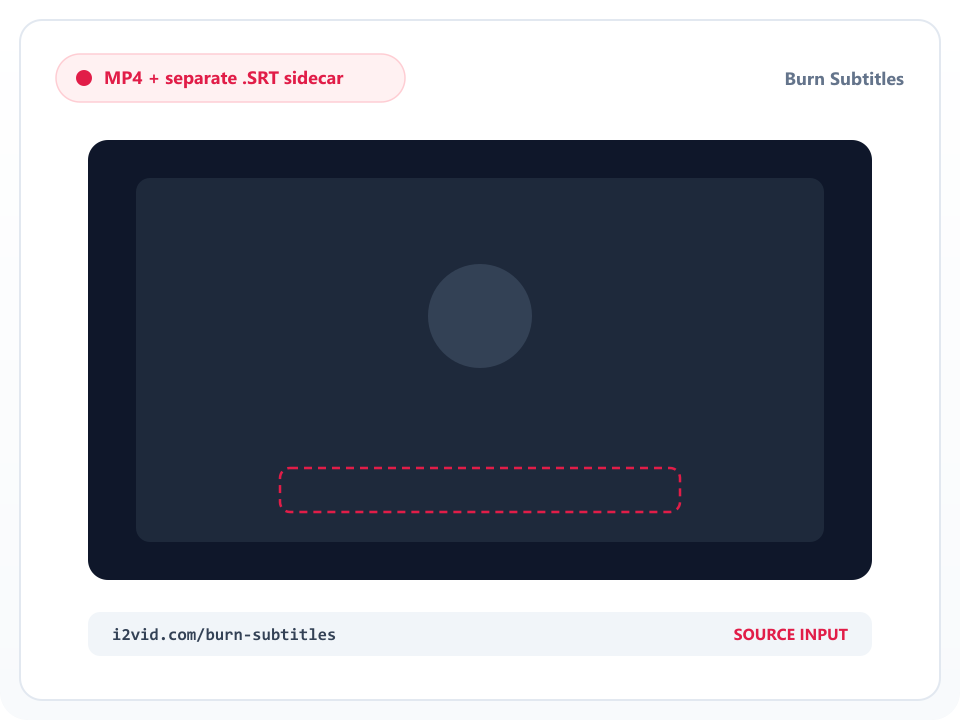

Load your video and import your SRT or WebVTT file
Open Burn Subtitles and select your MP4, MOV, MKV, or WebM video.
Upload your .srt or .vtt subtitle file (or try the built-in sample captions) to preview timed subtitles directly over your footage.
Style font size, outline, highlight box, and vertical placement
Pick a visual typography style, adjust font size, text color, outline contrast, or rounded pill background so captions stay readable over bright and dark scenes alike.
Position captions slightly higher on 9:16 vertical videos so TikTok, Reels, and Shorts username/caption overlays never cover your subtitles.
Place vertical video subtitles in the lower-middle third rather than the bottom edge so platform like/share icons never overlap them.
Use Online Video Editor → Captions → Create automatic captions to generate captions from spoken audio automatically!
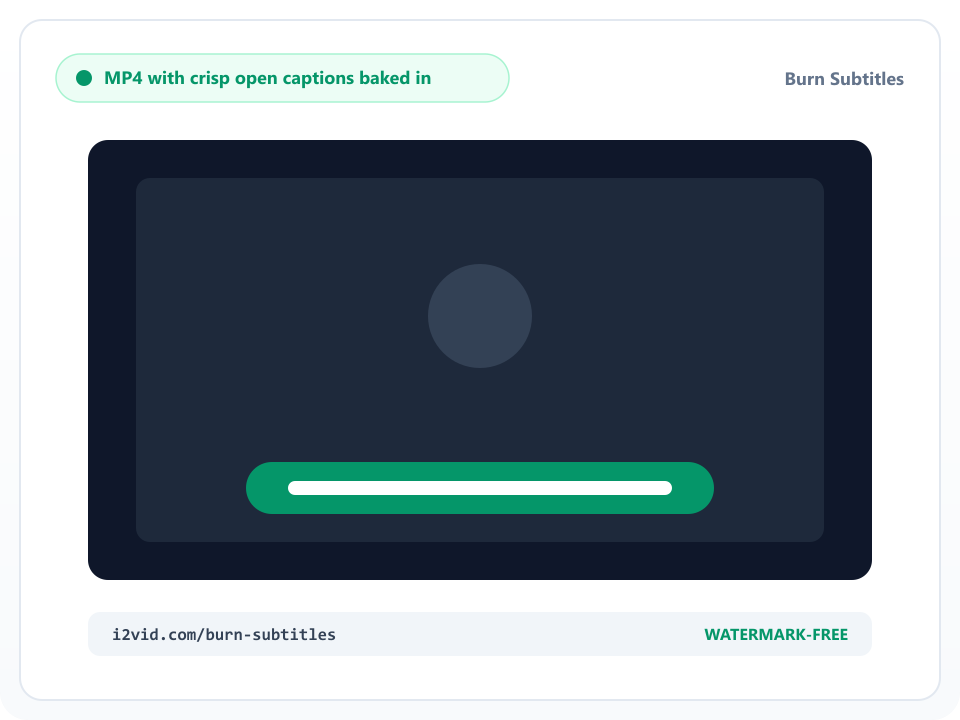
Render and download your open-captioned MP4
Click Export Video to composite every timed subtitle cue cleanly onto your video frames.
Verify the burned captions on the download player and save your finished MP4 or WebM.
Ready to use Burn Subtitles?
Open Burn Subtitles in your browser—100% private on your device with zero uploads and zero watermarks. Related video tools: Subtitle Editor, Online Video Editor, Subtitle Converter.
Burn Subtitles FAQs
Practical answers for getting clean, fast, watermark-free video exports right in your browser.
Can viewers turn burned-in subtitles off?
No—burned (open) captions become part of the video image itself, guaranteeing 100% visibility on every platform and device.
Do non-English scripts like Arabic, Japanese, and Hindi render properly?
Yes, browser canvas typography supports full Unicode and right-to-left scripts cleanly.
Does Burn Subtitles add a watermark?
Never.