Import your clips and choose your video aspect ratio
Open Online Video Editor and drop your MP4, MOV, WebM, PNG, JPG, MP3, or WAV files into the Media drawer—or click Sample Project in the File menu to explore a ready-made multi-track timeline.
Select 16:9 (YouTube), 9:16 (Reels, TikTok & Shorts), 1:1 (Square), or 4:5 (Portrait) from the top bar or Size & background tab so every scene and title frames cleanly.
Edit titles in place, generate speech captions, and add transitions
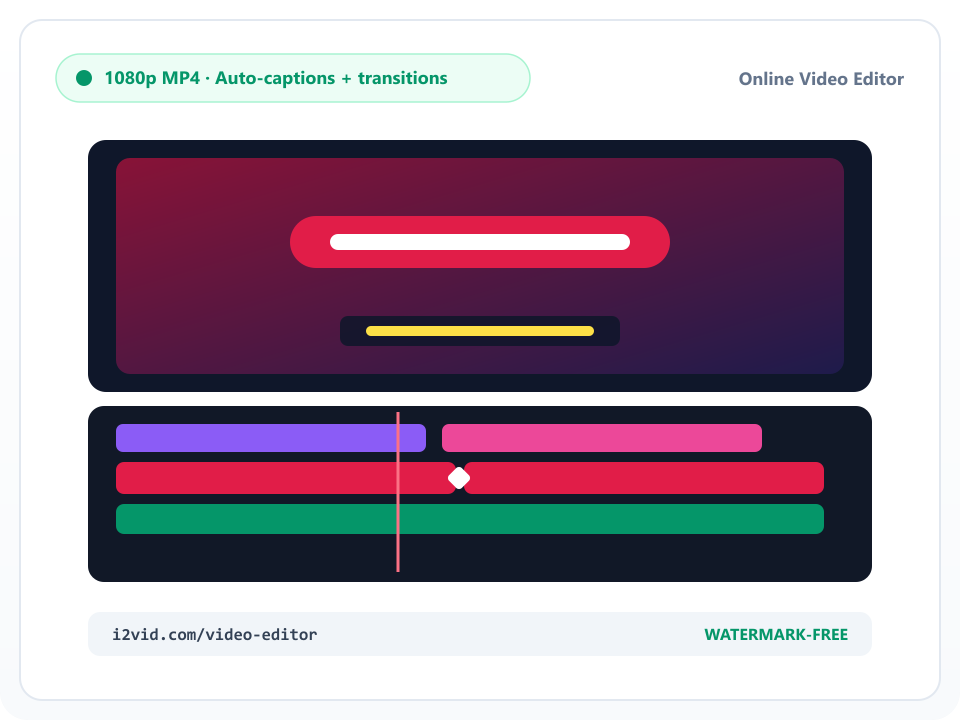
Open Text to add a heading or lower third from 27 visual presets. Double-click any text directly on the stage to edit words in place, and use its floating pill menu to adjust typography, colors, highlight boxes, or motion.
Open Captions and click Create automatic captions to turn spoken dialogue into timed, editable subtitle cues—then open Transitions or Audio to add a Crossfade cut and enable Duck under speech on your music track.
Single-click any title to move, resize, or rotate it; double-click the text on the canvas to type replacement words directly in place.
Select your background music clip and enable Duck under speech so music dips smoothly whenever spoken voiceover or dialogue plays.
Export your finished 720p or 1080p MP4 or WebM locally
Press Space to preview your full timeline with live transitions and synchronized audio. Your active project saves automatically in your browser and can also be downloaded as a portable .i2vid backup from File.
Click Export Video, choose 720p HD or 1080p Full HD at 24, 30, or 60 FPS in MP4 or WebM format, and download your finished video with zero watermarks.
Ready to use Online Video Editor?
Open Online Video Editor in your browser—100% private on your device with zero uploads and zero watermarks. Related video tools: Trim Video, Compress Video, Crop Video.
Online Video Editor FAQs
Practical answers for getting clean, fast, watermark-free video exports right in your browser.
Does i2Vid Online Video Editor add a watermark to 1080p exports?
Never. Both 720p and 1080p MP4 and WebM exports are 100% free and completely watermark-free with no account required.
How do automatic captions work without uploading my video?
Speech recognition runs privately inside your browser on your own computer, generating editable timed captions without sending audio to external servers.
Will I lose my timeline if I accidentally refresh the tab?
No. Your timeline edits and imported media are cached locally in your browser and restored automatically—and you can save a .i2vid backup file anytime.